


Artify: AI Photo Magic Editor
3.939.00 Reviews
App Specs
- Version
- 1.1.8
- Updated On
- License
- Free
- Downloads
- 1,000,000+
- Developer
- Growly
- Categories
- Photography
- Platform
- Android
Screenshots
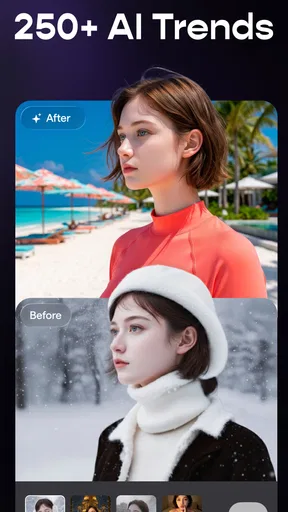

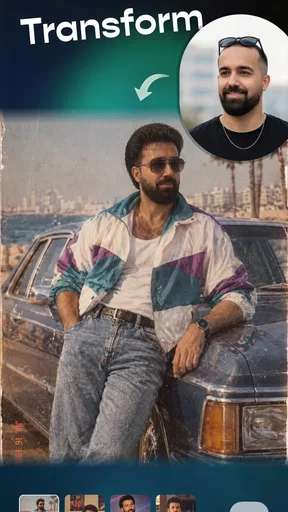
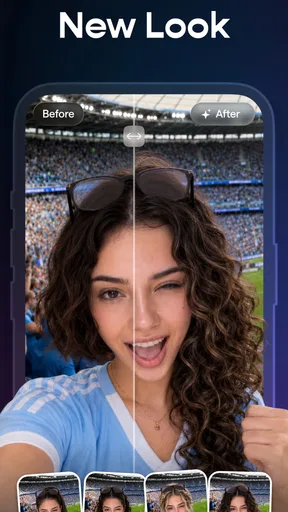
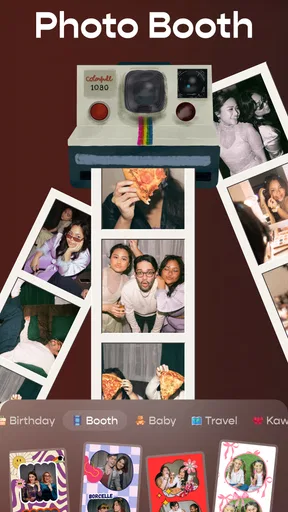
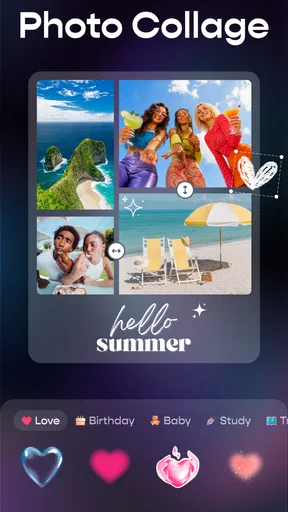
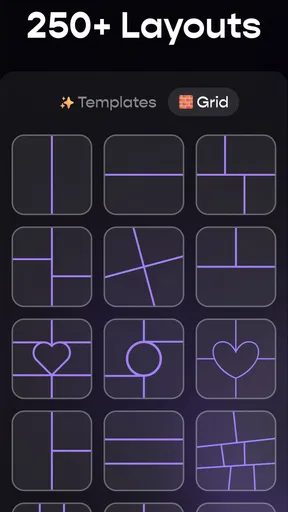
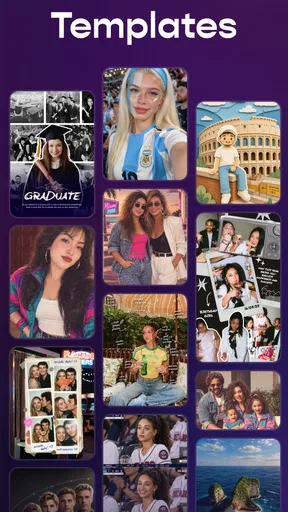
 Analysis by AppCompare
I like photo editors that let me solve a small visual problem without turning a quick edit into a project. Artify: AI Photo Magic Editor is aimed at that kind of use: it brings several editing tasks together, including cutouts, collages, filters, enhancement and effects. That mix makes it more of a flexible, all-in-one tool than a dedicated editor for one particular job. My main impression is that it should suit casual edits and social-ready images best, while people who want precise, repeatable control may prefer a more specialized app.
What I would test before settling on a workflow
When I try an unfamiliar editor, I start with a photo that has one clear problem rather than a picture I already love. A distracting background, uneven lighting, or a handful of images that might work as a collage makes it easier to judge whether the tools are genuinely useful. It also makes experimentation less stressful: if a cutout misses an edge or an effect feels too heavy, I can simply return to the original and try a different approach.
For Artify, I would make a quick comparison by editing the same image in two ways: first with a light touch, then with a more noticeable effect. Looking at both versions side by side helps me decide whether the app’s styling improves the picture or merely makes the edit obvious. That matters most for portraits and product photos, where a dramatic change can distract from the face or object the image is meant to show.
What free access means here
I’d use this section to separate the practical appeal of trying Artify without an upfront charge from assumptions about what every tool or future use might cost. That distinction matters if you’re comparing it with a basic phone editor: the best test is whether its cutouts, collage work, and effects save enough effort for your own photos.
A no-cost starting point
Artify is a free photography app from Growly, and its audience rating averages 3.9 from around 13,000 ratings. It has passed a million installs, so it has found a substantial audience, though popularity alone does not tell me whether its editing style will suit you. The age rating is Everyone, which makes it broadly accessible as a creative tool.
Free access is the clearest part of the value question: you can try the app without paying upfront. That is useful when you only need to remove a background once, make a quick collage, or see whether its effects fit your taste. I would treat “free” as a low-commitment way to evaluate it, not as a promise that every tool or possible use is included at no cost. The practical approach is to open the exact feature you need and check what the app lets you do before building a workflow around it.
The current version is 1.1.8, and the minimum operating-system requirement is 7.0. Those details help with basic compatibility planning, but the more important question is whether the app’s particular combination of tools saves you time. It is strongest when you can finish an image in one place rather than moving between separate apps for a cutout, a look, and a layout.
Worth Reading Before You Choose

EA SPORTS FC Mobile 26 Is a Bigger Football Game, but It Takes Time

Flipboard Shows What News Apps Must Do Beyond the Feed

Switching to Android Auto Means Rethinking Your Driving Routine

Google Calendar Makes a Crowded Week Easier to Manage

Ludo King Makes the Most of the Minutes Between Plans

Baby Panda World Brings Quick Play to Modern Phones, but Its Game Library Feels Busy
Where the value comes from
Instead of judging Artify by how many effects it offers, I would judge it by how often its tools connect naturally. A background cutout can become the subject of a collage; a filter can unify several pictures; an enhancer can be a quick first step before you decide whether an image is worth more careful editing. That joined-up workflow is the app’s most appealing idea. For someone making occasional posts, invitations, or playful edits, convenience can matter more than advanced controls.
A useful tip is to decide on the image’s purpose before editing. For a profile picture, start with the crop and background, then keep effects restrained so the subject remains recognizable. For a collage, choose the pictures first and apply a consistent visual treatment afterward; editing each photo in a different style can make the finished layout feel busy. This simple order reduces the temptation to stack effects just because they are available.
Another practical use is separating a subject from a cluttered setting for a simple graphic. A clean cutout may work well on a plain or decorative background, but fine hair, transparent objects, and edges that blend into the original scene are harder cases for automated selection. I would inspect the outline at a larger view before sharing. If the edge looks rough, a dedicated masking editor is a better choice than trying to hide the problem under stronger filters.
Trade-offs in an all-in-one editor
The breadth that makes Artify convenient also creates a trade-off: a tool designed to cover collages, cutouts, filters and enhancement may not offer the depth of an app devoted to one of those tasks. If you need exact color adjustments, careful retouching, detailed layer management, or a consistent production process, a specialist editor is likely to feel more dependable. Artify is easier to recommend for expressive, one-off results than for work where small technical differences matter.
AI-assisted editing can speed up the first pass, but it does not remove the need for judgment. Background removal is most convincing when the subject contrasts clearly with what is behind it; a busy scene can leave stray edges or remove parts that belong. Enhancement can also make a photo look less natural if pushed too far. I would compare the edited result with the original before saving or sharing, especially for portraits, product images, and pictures where texture or color needs to remain believable.
There is also a difference between a fast result and a precise one. Filters and effects are useful when I want a noticeable mood quickly, but they are not automatically a substitute for restrained corrections. For a family photo or a work-related image, I would use the least dramatic treatment that fixes the problem. For a playful collage, more stylization makes sense. That distinction helps avoid the common all-in-one-editor trap of applying several treatments simply because they are close at hand.
Before relying on any editor for a finished project, I would test the entire path from opening an image to exporting the result: check whether the desired tool is accessible, whether the output looks clean at the size you need, and whether the final image is convenient to share. This is especially sensible if you plan to use the app regularly. A quick trial on a photo you can easily replace is better than discovering a workflow snag after spending time on a more important image.
Everyday situations where it makes sense
Imagine taking a quick portrait at home before a video call or social post. The room behind you is untidy, but the photo itself is sharp. Artify’s cutout and background tools are a natural place to start; a subtle filter can then give the image a more finished feel. I would keep the original, inspect the hairline and shoulders, and avoid adding effects that make the portrait look unlike the person. That workflow is convenient for a casual post, even if it would not replace careful retouching for a professional headshot.
For a weekend recap, a collage can solve a different problem: several good photos, but no desire to publish them one by one. I would pick images with a similar light and color before arranging them. If one photo is much darker than the others, a light enhancement may help, but forcing every image through the same strong filter can flatten the differences that make the set feel personal. The app’s range is useful here precisely because I can try layout and styling in the same editing session.
Small sellers or hobby makers may also find a cutout useful for presenting an object against a simpler background. The trade-off is accuracy: an automated edge can be distracting around thin parts, reflective surfaces, or objects with colors close to the surroundings. For a quick listing draft or a personal project, that may be acceptable after inspection. If the picture must look polished and consistent across a catalog, I would choose a tool that gives more control over masks and repeatable edits.
Making a collage look intentional
One small decision can make a collage feel much more considered: choose a lead image before arranging the rest. I would give that photo the clearest space, then use the other pictures to add context rather than compete for attention. If every image has equal visual weight, the result can feel like a contact sheet instead of a story. This approach is especially helpful for a family outing, a birthday recap, or a set of photos from a craft project.
I would also check how the images meet at their edges. A layout can look tidy at first glance while placing a face, a hand, or an important object too close to a boundary. Before sharing, I would inspect the whole collage at the size it will be viewed and make sure the crop still communicates what happened in each photo. The useful trade-off is that a single assembled image is easier to post or send, but it gives each photo less room than a separate album would.
Who is likely to get the most from it
I would recommend trying Artify if you edit photos occasionally, enjoy visual experimentation, and prefer having several approachable tools in one app. It is particularly suited to people who make casual collages, want a quick subject cutout, or like testing different looks without learning a complex editing suite. The free entry point makes that trial easier, and its broad age rating reflects an audience that is not limited to professional creators.
I would skip it as my main editor if precision is the priority. Photographers who need dependable fine adjustments, creators working with many images in a consistent style, and anyone who frequently repairs complicated masks will probably be better served by specialist software. I would also avoid choosing an editor solely because it can produce dramatic effects; the useful question is whether its results match the images you actually make.
Compared with the usual alternatives, Artify’s appeal is convenience rather than a claim to beat every dedicated tool. A basic phone editor can be quicker for a crop or a small brightness correction. A specialist cutout app may provide more careful edge work, while a focused collage maker may offer a smoother route to a particular layout. Artify earns consideration when you want to move between those kinds of tasks without changing apps, and loses ground when one task demands unusually fine control.
When a different tool is the better fit
If I only need to straighten a photo, crop out an unwanted corner, or make a modest brightness adjustment, I would begin with the phone’s built-in editor. That keeps a simple correction simple and avoids adding another step. Artify makes more sense when the job combines several kinds of edit, such as cutting out a subject and then placing it into a designed image, rather than when I am making a one-tap fix.
For repeated work, consistency becomes more important than having many options nearby. Someone preparing a batch of product pictures, for example, may want the same framing and treatment on every image. I would use a specialist workflow if matching those results matters more than experimenting. Artify can still be useful for testing a quick concept, but I would not assume that a convenient first pass is automatically a reliable production routine.
My buy-or-skip verdict
Because Artify is free to start using, my verdict is a low-risk try rather than an unconditional recommendation. I would install it for occasional creative edits and test it on a few different photos: a clear portrait, a busy-background image, and a small collage. Those examples quickly reveal whether the cutouts, visual treatments, and overall workflow meet your expectations. If they do, its combination of tools can be convenient; if not, there is little reason to force it into a role better handled by a dedicated editor.
The best reason to choose Artify is the convenience of trying several kinds of photo edit in one place. The main reason to look elsewhere is the need for exact, repeatable control. I see it as a practical option for casual creativity, not a replacement for every editor a serious photographer might use. Try it when speed and experimentation matter more than fine detail, and skip it when edge accuracy or a carefully controlled finish is essential.
A practical way to decide
I would make the decision with three ordinary images rather than judging the app from a single dramatic example: a portrait with a distinct outline, a photo whose background is visually busy, and a small set of pictures for a collage. Together they show whether the cutout is convincing in a straightforward case, how it handles a harder one, and whether arranging multiple images feels worthwhile. If the first result is good but the second needs more precision than the app gives you, that is a useful boundary to know rather than a reason to keep pushing.
For everyday sharing, I would also keep a clean original and treat the edited copy as a separate version. That gives you room to change direction later, especially if you decide a filter is too strong or notice an edge problem after viewing the image on a larger screen. My overall recommendation stays simple: give Artify a try when its mix of creative tasks matches what you actually want to make, and choose a focused editor when accuracy and consistency matter more than convenience.
Pros
- Quickly turns text prompts into creative image edits.
- Offers multiple AI styles for exploring different looks.
- Simple interface makes basic editing easy to get started.
- Useful for creating social media images and profile pictures.
- Can help refresh ordinary photos with imaginative effects.
Cons
- Results may vary in quality depending on the photo and prompt.
- AI edits can change facial features or other important details.
- Some tools or styles may require a subscription or credits.
- Processing may take longer on complex edits or slower devices.
- Uploading personal photos may raise privacy concerns.
FAQs for Artify: AI Photo Magic Editor
What is Artify: AI Photo Magic Editor?
Artify: AI Photo Magic Editor is a photo-editing app that uses artificial intelligence to transform or enhance images. Depending on the tools available in your version, you may be able to apply creative effects, adjust a portrait, or generate stylized results from a photo. Features can change with app updates, so check the current store listing to confirm which editing options are included.
Is Artify free to download and use?
The app may be free to download, but that does not necessarily mean every feature is free. AI edits, premium effects, export options, or additional usage may require an in-app purchase or subscription. Before starting a trial or confirming a payment, review the price, renewal period, and cancellation terms shown in the app store and on the subscription screen.
Do I need an internet connection to use Artify?
Many AI photo tools process images online, so an internet connection may be needed to upload a photo, create an edit, or retrieve the finished result. Basic functions, if available, may work offline, but this can vary by feature and app version. If you plan to edit while travelling, check which tools require connectivity and whether the app explains how images are handled.
What happens to the photos I upload to Artify?
AI editing may involve sending a selected image to the app’s service for processing. Before uploading personal or sensitive photos, read Artify’s privacy policy and the relevant app-store privacy disclosures. These explain what information may be collected, how images are used or retained, and whether data is shared with service providers. Avoid uploading images you do not have permission to use.
How can I get the best results from Artify?
Start with a clear, well-lit image and make sure the main subject is easy to distinguish from the background. Choose an effect that suits the photo, then compare the edited image with the original before saving or sharing it. Results from AI tools can vary, especially with blurry pictures, unusual lighting, or crowded scenes, so try another image or setting if the first edit looks unnatural.


